

You might think console apps are just plain text. They may seem to lack visual appeal. But the command-line interface (CLI) is now a very important tool. This is true in modern development. It’s especially true with cloud platforms. Think of AWS and Azure. Many developers find the terminal a must-have. 69% say it is essential.
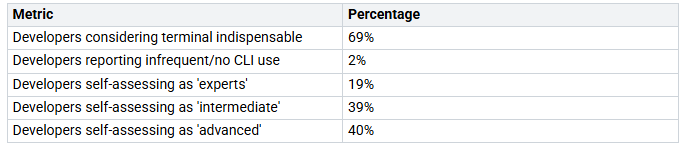
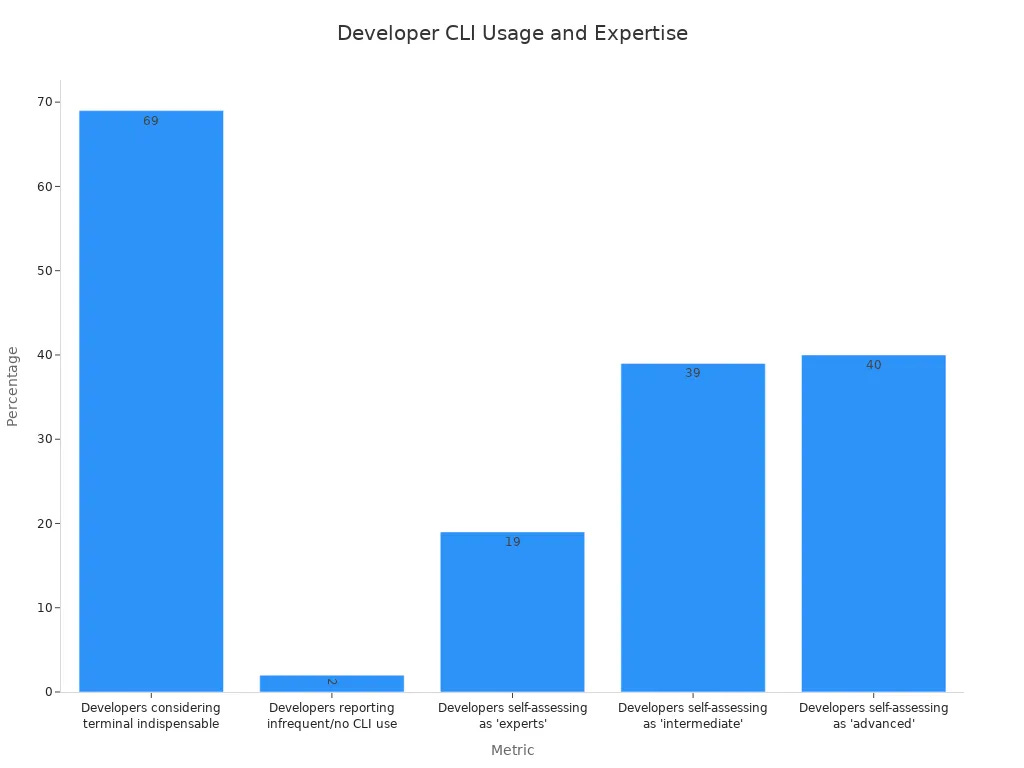
This shows a clear need. We need more engaging console experiences. We also need user-friendly ones. You can change your basic .net console app. Make it visually stunning. Make it interactive. .NET has powerful tools for this. It also has techniques. This guide will help you. You can build the coolest console apps.
Key Takeaways
New console apps are useful tools. They can look good. They can also be fun to use.
Tools like Razor.Core and Spectre.Console help make .NET console UIs better. They let you add colors. They also let you add tables. You can also add things you can click on.
Good console UIs make using apps nicer. They help developers work faster. They also make work easier.
You can make console apps interactive. Use questions to ask the user. Show how much work is done. You can also respond to key presses.
Console UIs are good for certain jobs. They are better than big graphical programs. This is true for scripts. It is also true for automation.
Why Make Console UIs Look Great?
How Users Feel in Console Apps
You may ask why make console apps look good. A good user experience helps a lot. One study shows money spent on UX can return 100 times more. This is a huge return. Better UX means users finish tasks faster. This is called ‘Time on task’. For example, setting up work gets quicker. A clear app means fewer confusing steps. You want users to learn your app fast. See how often they check help guides. Users should need little help quickly. This means your app is easy to use.
Making Work Better and Easier
A better console UI makes work much faster. Developers write more code. They write better code. They write it faster. They have fewer problems. You remove things that slow them down. This lets them focus on key work. A good developer works well. They fix problems with few stops. A good tool is like a ‘power-up’. It helps developers go faster. They work together better. They make better code. This means better work. Debugging is faster. Switching tasks is less. Fixing issues is quicker. Seeing what’s happening gets better. Thinking hard is less. Code checks speed up. Response times are faster. Automated tasks run smoother. Learning alone is quicker. Being responsible improves. Understanding is better. Less frustration happens. Teamwork gets better.
When a GUI is Too Much
Sometimes, a full GUI is just too much. For many jobs, a good console app works better. You might need to run scripts automatically. You might set up servers. Or you might do quick data work. A console app is fast and direct. It avoids a complex GUI. This makes it great for developers. It is also good for system managers. They often like the command line. It gives them power and flexibility.
Key Tools for .NET Console UI Development
You want to make great console UIs. You need the right tools. .NET has strong choices. Let’s look at them.
Building Interactive C# Console Apps with Razor.Core
Imagine making a lively C# console app. It would be as easy as making a website. Razor.Core makes this real. This new library brings Razor syntax. It comes to your console apps. Think of Blazor. But it is for your terminal. You write Razor files. An example is Counter.razor. These files mix HTML-like code. They also use C# code. This way makes state management simple. It makes building interactive parts easy.
For example, you can use a Columns component. It helps arrange your layout. You can use a p tag. This is for paragraphs. You can even make interactive buttons. A TextButton component can start C# methods. An example is IncrementCount(). This lets you build animated dashboards. Or you can make complex database managers. You can create UIs that update live. This is a big step. It is beyond old, manual console UI updates. Razor.Core gives a strong and easy way. It helps make engaging .NET console experiences. This method truly lifts the power. It helps a C# console app.
Spectre.Console: The Versatile UI Toolkit
Spectre.Console is another good choice. It makes your console apps better. This useful toolkit has many features. It helps you make good-looking interfaces. They are also interactive. You can build complex questions. These include picking one item. Or picking many items. You can also ask for secrets. Spectre.Console also has questions with checks.
The library has good ways to show things. You get 24-bit colors. You can style text. You can make it bold. You can make it italic. Other styles are there too. It has different widgets. These include tables and trees. It also has ASCII images. You can show progress bars. You can also show status controls. Spectre.Console checks terminal features. It changes what it shows. This makes it look best. This makes sure your UI looks good. It works on different terminals.
Spectre.Console works with tables. It works with grids. It works with panels. It uses a Rich-like language. This makes formatting easy. You can use common SRG settings. These are for text styling. They include bold and dim. Also italic and underline. Strikethrough and blinking text are there. It works with 3/4/8/24-bit colors. This is in the terminal. It can use fewer colors if needed. This makes it work everywhere. You can also use live displays. These are for progress and status. They are also for tasks that run over time. The library has many widgets:
Align
Columns
Panel
Table
Tree
Bar Chart
Rows
Breakdown Chart
Rule
Calendar
Grid
Layout
Figlet
Padder
Canvas
Canvas Image
JSON
Text Path
Spectre.Console.Cli also helps. It helps with command-line app making. It has CommandApp. It also has tools for making commands. And for testing them.
Terminal.Gui: TUI Applications with Controls
Some people like old-style Text User Interfaces (TUI). For them, Terminal.Gui is a good option. This library lets you build full TUI apps. It has many controls. You can make windows. You can make dialogs. You can make menus. You can make input boxes. It gives you a GUI-like feel. This is right in your terminal. You can make complex designs. You can handle user actions well. Terminal.Gui is a strong system. It helps build interactive console experiences.
Other Libraries for Console App Enhancements
There are other .NET libraries. They are not just UI toolkits. They make your console apps better. These tools improve how things work. They also improve speed.
You can use WebSocketStream. This new tool makes WebSockets simple. It uses a Stream-based idea. This means less extra code. It handles buffering. It handles framing. It handles putting messages back together. JsonSerializer.Deserialize now works directly. It works with PipeReader. This means you don’t need to change it. You don’t need to make it a Stream. This makes it much faster. For Windows process control, ProcessStartInfo.CreateNewProcessGroup is helpful. It lets you start processes. They are in their own group. This means child processes can handle signals alone. These are important steps forward. They are for any modern .NET app.
TensorPrimitives now has general options. These are for different types. It goes beyond float values. This is for things like CosineSimilarity<T>. New threading tools include Task.WhenEach. This goes through tasks. It does this as they finish. CreateUnboundedPrioritized makes channels. These order items by how important they are. Interlocked.CompareExchange now works. It works with more basic types. These include byte and sbyte. Also short and ushort. bool, char, and enum types are included. It also removed limits. These were for reference types. Lastly, Base64Url is new. It helps encode and decode data fast. This is for URL-safe Base64 format. It fixes problems with ‘+’ and ‘/’ signs. These are in standard Base64. These new things in .NET core give a strong base. They help you build fast console apps. They also help build apps with many features.
Core Techniques for Visual Appeal
You can make your console apps look good. You use special ways to do this. These ways help users see and use your app better.
Mastering Colors and Text Formatting
Colors and text make your console output clear. They show what is important. ANSI escape sequences control text. They start with an escape character. Then they have a bracket. They tell the terminal how to show text. For example, \x1b[31m makes text red. \x1b[0m removes all styling.
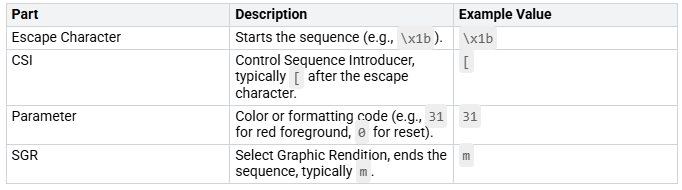
You can make text red (31). You can make it green (32). You can also change background colors. Use code 1 for bold text. Code 7 makes text inverse. These tools help make your .net console apps look rich.
Using Emojis and Unicode Characters
Emojis and Unicode characters add visual hints. They make your console app friendlier. You can use a checkmark (✅) for success. An ‘X’ (❌) can show failure. Be consistent when you use these. Always use uniform Unicode escaping. This is for characters not easy to type. Do not use too much escaping. Use clear names for variables. Test your app with different character sets. This makes sure everything shows right. Write down any Unicode characters you use. This helps other developers.
Structuring Layouts with Tables and Panels
You can organize complex info. Use tables and panels. Tables are good for showing data. Think of comparisons. Or financial numbers. Panels split your screen. They make different areas. This is good for dashboards. Or IDEs. You can show summary info. Put important info at the top-left. This is where users look first. Keep your card layouts the same. Titles and labels are always in the same spot. This makes it less messy. It helps users find info fast. This is in your console UI.
Dynamic Content and Real-time Updates
Dynamic content makes your console app interactive. It shows changes as they happen. You can show progress bars. This is for long tasks. Spinners show your app is working. Real-time updates mean data changes fast. This keeps users informed. It makes your app feel quick. You can show live system metrics. Or ongoing processes. This makes using your console tool more fun.
Adding Interactivity to Your Console App
Your console apps can do more. They can be interactive. Users can work with your c# console app.
User Input: Prompts, Selections, and Forms
Guide users with tasks. Ask for info with prompts. Offer choices with selections. Users pick from a list. Build forms to get data. This makes your console app easy. Users will give input easily.
Progress Indicators and Spinners
Long tasks make users wait. Show them work is happening. Console spinners are key. They give visual clues. Users won’t see a still screen. This stops anger. Spinners keep users updated. They make apps better. Adding them is easy. Many spinner types exist. Use ←↖↑↗→↘↓↙ or ▃▄▅▆▇█▇▆▅▄▃. Try ◰◳◲◱ or |/-\. Even abcdefghijklmnopqrstuvwxyz works. These clues show your app is busy.
Handling Keyboard and Mouse Events
Your console app can do more. It can react to keys. This means shortcuts. It can also react to mouse clicks. Users can click things. This makes new ways to interact. You can make good navigation. You can start actions right away.
Creating Responsive Console Experiences
Terminals have different sizes. Your console UI should change. Make experiences that adapt. Check terminal size first. Do this before showing content. This stops text from breaking. Add a resize handler. It sees when size changes. Make UIs for many sizes. Don’t fix them to one. Set a smallest size. Tell users if it’s too small. JLine helps find size changes. It uses getSize(). It also tracks resize events. This makes your console app look good anywhere.
Practical Examples: Building Advanced Console Apps
You can build amazing things. Use the right tools. This section shows what is possible. You will see how to make advanced console applications. These examples use Razor.Core. They also use other libraries.
Interactive Menu Systems
You can make your console app easy to use. Build interactive menu systems. Users can move through your application. They use simple keyboard inputs. Imagine a main menu. It has options like “Start New Task.” Or “View Reports.” Or “Settings.” Razor.Core makes this simple. You define menu items. They are like components. You link them to actions. When a user picks an option, your app acts fast. This makes a smooth user experience. You go beyond basic text prompts. You give users a dynamic way to interact.
Real-time Dashboards and Monitoring Tools
You can create dynamic dashboards. These dashboards show data right away. Think about checking system performance. You can show CPU usage. Also memory and network traffic. Razor.Core is great for this. It lets you build animated UIs. You can update data live. Imagine a dashboard. Numbers change all the time. It shows your server’s health. You can add simple charts. Or progress bars. Spectre.Console helps with visuals. It gives tables and panels. These tools help organize complex info. You get a powerful monitoring tool. It is right in your terminal.
Console-based Data Management Interfaces
You can build strong data management tools. These tools run in your console. Imagine an interface for a database. You can see records. You can add new entries. Or delete old ones. You can even use pagination. This lets you look through big datasets. The video example showed a SQLite manager. It let users look at records. It also let them add and delete data. Razor.Core‘s component model makes this work. You define UI parts for showing data. You also define parts for user input. This gives you a full data management app.
Setting Up Your Console App Project
You need to set up your project first. This is the start for any .net console app. You have many ways to make a new project.
If you use Visual Studio, do these steps:
Name your project. Do this in the ‘Configure your new project’ box. For example, call it ‘HelloWorld’.
Pick ‘.NET 8’. This is the target framework. Do this in the ‘Additional information’ box.
Choose ‘Do not use top-level statements’. This includes the
Programclass. It also includes theMainmethod.Click ‘Create’. This makes the project. It has a basic ‘Hello, World!’ app. It is in
Program.cs.
The Program.cs file will look like this:
namespace HelloWorld;

internal class Program
{
    static void Main(string[] args)
    {
        Console.WriteLine(”Hello, World!”);
    }
}
If you like Visual Studio Code, start here:
Open Visual Studio Code.
Go to the Explorer view. Pick ‘Create .NET Project’. You can also use Ctrl+Shift+P. Find ‘.NET: New Project’.
Choose the ‘Console App’ template.
Pick a spot for your new project.
Name the project ‘HelloWorld’.
Pick ‘Show all template options’. Set ‘Do not use top-level statements’ to ‘true’.
Click ‘Create Project’.
Say yes to trusting the file authors. Do this if asked.
Open
Program.cs. See the app made by the template.
You can also use the command line. This is a fast way to start:
Make a new console application. Name it
MyConsoleApp. Use the command:dotnet new console -n MyConsoleApp.Go into the new project folder:
cd MyConsoleApp.
A basic .net console app has two main files:
Program.cs: This file is where the app starts. It usually has a ‘Hello, World!’ example.
MyConsoleApp.csproj: This is the project file. It holds settings. It manages what your app needs.
Sometimes, you need special settings. For example, if you use Windows Forms parts in your console app:
Right-click on your project. Do this in Solution Explorer. Pick ‘Properties’.
Under ‘Build’ in ‘General’, find ‘Platform target’. Change it from ‘AnyCPU’ to ‘x64’. Save all changes.
Right-click on the project. Pick ‘Edit Project File’.
Change the
<TargetFramework>fromnet8.0tonet8.0-windows.Add
<UseWindowsForms>true</UseWindowsForms>. Put it right belowTargetFramework. This is key for Windows Forms parts.The final project file should look like this:
<Project Sdk=”Microsoft.NET.Sdk”>

<PropertyGroup>
<OutputType>Exe</OutputType>
<TargetFramework>net8.0-windows</TargetFramework>
<UseWindowsForms>true</UseWindowsForms>
<ImplicitUsings>enable</ImplicitUsings>
<Nullable>enable</Nullable>
<PlatformTarget>x64</PlatformTarget>
</PropertyGroup>

</Project>
Save and close the project file.
You now see how powerful new .NET console UI tools are. Razor.Core helps make cool interactive apps. Making console apps look better helps users. It also makes work faster. Your console app will be special. Try these tools. Make your .NET console apps better. Use all their power. Build the best console apps. Make your .NET console projects great. Create the best console apps.
FAQ
What is Razor.Core and how does it compare to Blazor?
Razor.Core uses Razor syntax. It works for console apps. You make UI parts. You use Razor files. This is like Blazor. Blazor is for web apps. It helps build interactive console UIs. It also makes animated ones. It does this easily.
Can I use Spectre.Console with Razor.Core?
Yes, you can use Spectre.Console. You can use it with Razor.Core. Spectre.Console has strong styling. It has rich parts. Razor.Core manages the interactive UI. Together, they make console apps. These apps look great. They work very well.
Why should I choose a console UI over a full GUI?
A console UI is often better. It is good for scripts. It is good for automation. It is also good for developer tools. You do not need a full graphical interface. This makes your app faster. It is also more direct.
Are these tools compatible with all .NET versions?
These tools work with new .NET versions. For example, they work with .NET 8. Always check the library’s guide. This makes sure it works. It works with your project’s framework.


