

Take the scene the m365 Show episode from 19 November opens with: a 30-message Outlook thread about launch timelines. You ask Copilot to summarize it, and it pulls out the key updates and drafts a polite reply. Ten minutes saved, in theory.
The interesting question comes after that. What else could the same request have drawn on, and what does the result carry with it?
The episode answers app by app. This post does something different: it turns the episode into four checks you can run in your own tenant, plus a short note on what “no additional cost” covers.
First, the license picture
Microsoft’s product page makes Copilot Chat available to Entra accounts with an eligible subscription without extra charge. Unlicensed, it answers from the web. In Outlook it can also use the inbox, calendar, meetings and a little more.
In Word, Excel, PowerPoint and OneNote the deciding factor is the license label on the user’s Copilot home page, M365 Copilot Basic or Premium. Chats and enterprise files belong to the add-on license, and agents run on metered billing.
So the scene above, with a thread, linked files and meetings behind it, is the licensed picture. Keep that in mind when you pick test users.
Check 1: does the label travel?
Pick a source file that carries a sensitivity label. In Word, PowerPoint or Outlook, ask Copilot to create new content from that file as a reference. Then look at the result.
Microsoft documents that the new content inherits the source’s label. With several sources, the highest priority label wins, and the author can override it. The episode adds a warning: a screenshot of a summary carries no label at all, and copy and paste can shed protection faster than policies change.
Check 2: does your data loss rule fire?
In Microsoft Purview, a policy location named “Microsoft 365 Copilot and Copilot Chat” lets a DLP policy act on prompts that contain a sensitive information type, and on files with chosen labels. Write a test prompt that contains one and see what happens.
Two limits to expect, per Microsoft: the check looks at what was typed into the prompt and skips uploaded files, and a blocked item can still appear as a citation. Plan your test prompts around that. The episode’s own reminder is shorter: without the policy, Copilot answers helpfully anyway.
Check 3: can you find the conversation?
Copilot prompts and responses land in a hidden mailbox folder that belongs to each user. In eDiscovery, open a case, pick that mailbox as the source and search with the condition Type > Contains any of > Copilot activity. If you get results, you have the trail the episode talks about. If not, find out why before anyone asks you for it.
Check 4: open one audit entry
Find a Copilot interaction in the audit log and read what it contains. According to Microsoft, an audit entry tells you the user, the time, the app and the files or sites involved. The words of the prompt and the answer are not in it. The episode says the events list the prompt text, which does not match Microsoft’s documentation, so treat the audit log as the index and eDiscovery as the content.
What no test covers: sharing
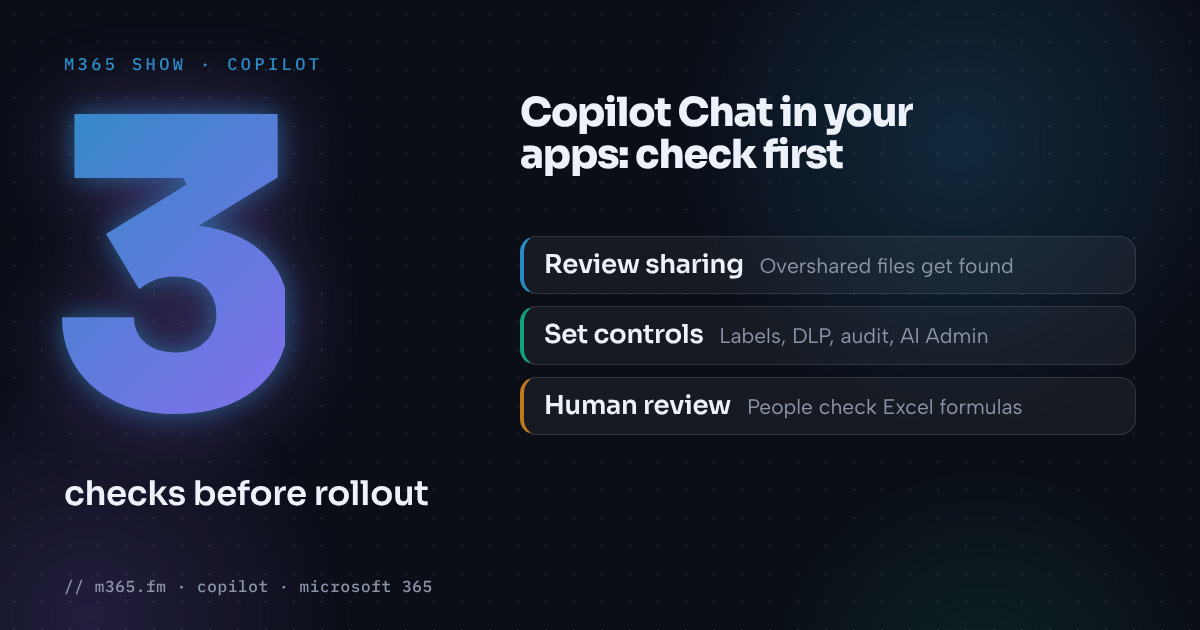
The four checks above test controls. None of them tells you what a Copilot user could reach today, and that is the larger question.
With a Microsoft 365 Copilot license, Copilot works on content that the signed-in user can already open, through the Microsoft Graph. Microsoft Learn puts it plainly: Copilot surfaces data a user has at least view permission for. Microsoft’s own guidance also warns that overshared content can be surfaced to anyone with access.
Copilot will not read a mailbox it has no access to. A sloppy permission nobody noticed for years is another matter: now it is one natural-language question away. No test script finds that for you. A review of SharePoint and OneDrive sharing does.
Two rules from the episode belong here too. For Excel, a person verifies formulas and sample results, and a peer validates before a Copilot-built workbook leaves the company. For OneNote, the episode suggests retention labels and switching AI summaries off for notebooks tied to public Teams channels. That second one is the episode’s advice, not a named setting in the documentation.
Where the settings live
The Copilot Control System groups Microsoft’s controls for Copilot and agents. Day to day, you will mostly work in the Microsoft 365 admin center, in the Copilot section and its Settings page. Microsoft names the AI Administrator role as an appropriate one, which fits the episode’s advice to manage Copilot without handing out global admin. Labels, DLP and audit sit in Purview, and those need permissions there.
A word on the pace
None of this needs a big program. Run the checks with one or two test accounts, write down what you see, and decide per check whether the default is acceptable. The episode’s closing advice fits here: do the tenant audit before you celebrate the announcement, and make sure a named person holds the AI Administrator role.
Your turn
If you have already run any of these four checks, which one turned up something you did not expect?
Listen / Read more
Watch it on YouTube, titled “Microsoft Copilot is Now FREE: How to Use it in Outlook & Word”
The show: m365.fm